Add and manage columns
A column follows one source. You can have as many as you like, in any order. This guide covers adding, changing, moving and removing them.
You will need
- An account. See Getting started.
1. Adding a column
- Click Add column in the sidebar.
- Pick a column type from the menu. The types are RSS / Atom feed, Reddit, Hacker News, YouTube channel, News search (Google) and Bing News. See Set up each kind of column for what each one needs.
- In the dialog, click one of the preset chips for a one-click setup, or fill in the fields yourself.
- Leave Column title blank to get a sensible name, or type your own.
- Choose how often it should check for new stories under Check for new items every.
- Click Add column.
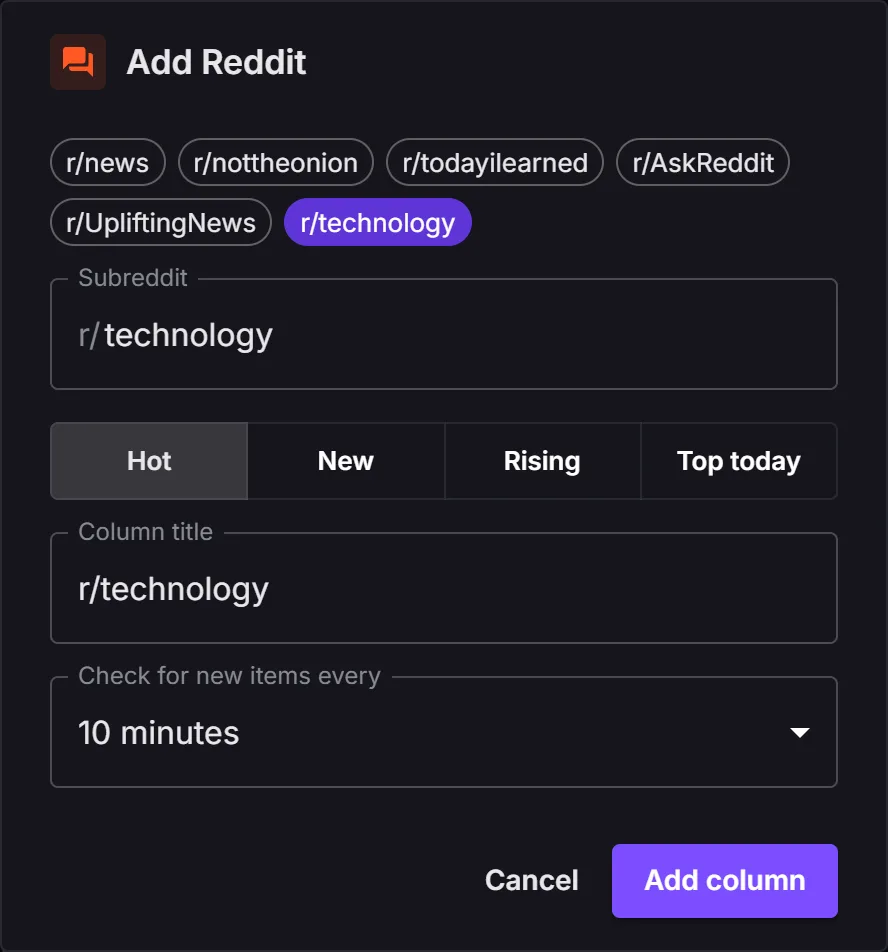
The new column appears at the right end of your board and fills with stories right away.
2. How often a column updates
Check for new items every can be 5 minutes, 10 minutes, 15 minutes, 30 minutes, 1 hour or 3 hours. Pick a short time for fast-moving sources such as Hacker News, and a longer one for sources that rarely change.
Columns update while Info Deck is open in your browser. If you close the tab, they stop, and they catch up as soon as you open it again.
To update a column right now, click the button in its header. It shows how long ago the column last updated, for example Just now or 5m.
Note: Feeds are shared between everyone using Info Deck for about two minutes. If you press the update button twice in a row, the second press may show the same stories.
3. Changing a column
Click the sliders icon in the column's header to open its settings. You can change the title, the source details and how often it updates.
Note: Changing where a column points, for example a different subreddit or search, clears its current stories and loads fresh ones.
4. Reordering columns
There are two ways to move a column:
- On the board: drag the column by its header and drop it where you want it.
- In the sidebar: drag a row in the Columns list up or down.
Clicking a row in the sidebar scrolls the board straight to that column, which is handy when you have a lot of them.
5. Removing a column
Click the X in the column's header, or hover over its row in the sidebar and click the X there. The column goes straight away, with no confirmation.
Warning: Removing a column also forgets which stories you hid in it. Stories you saved are not affected. See Read, save and hide stories.
6. The Saved column
Saved is a special column that collects the stories you keep. Add it from the same Add column menu. You can only have one.
Next steps
- Set up each kind of column: details for every source.
- Read, save and hide stories: what you can do with a story.