Read, save and hide stories
Every story in a column is a card. This guide covers what you can do with a card and how to find things in a busy column.
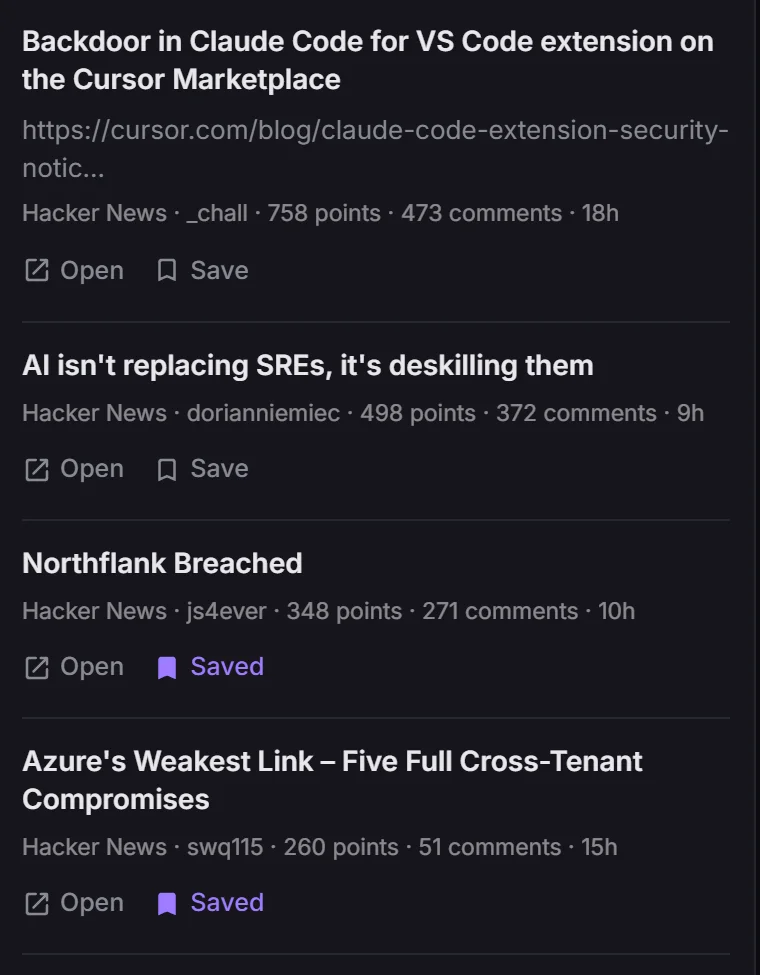
1. Reading a story
Each card shows the headline, a short summary and a thumbnail when the source has them, and a line underneath with where it came from and how long ago it was posted. Hacker News cards also show points and comments, and Reddit cards show who posted.
To read the full story, click Open, or double-click the card. It opens in a new browser tab.
2. Saving a story
Click Save on a card to keep it. The button turns purple and reads Saved.
Saved stories collect in your Saved column. They stay there even after the original feed moves on, and even if you later remove the column they came from.
To remove a story from Saved, click Saved on it again.
Note: If you don't have a Saved column yet, add one from Add column in the sidebar. See Add and manage columns.
3. Hiding a story
Hover over a card and click the eye icon on the right to hide it. Hidden stories disappear from that column and stay hidden, so you only see what's new.
Warning: There is no undo button for hiding. If you hide something by mistake, remove the column and add it again. Its hidden list starts fresh.
4. Filtering a column
Once a column has stories, a Filter this column box appears under its header. Type a word and the column shows only the cards that match. It looks at the headline, the summary, the source and the author.
Clear the box to see everything again. Filtering only changes what you see, and it doesn't hide or remove anything.
5. Long columns
A column loads the first 30 stories and adds more as you scroll down, so even a long list stays quick to scroll.
Next steps
- Customize your deck: themes, text size and layout.
- Troubleshooting: when something looks wrong.