Using your deck
Customize your deck
Switch between light and dark, change the text size, use the sidebar, and manage your account.
Make the deck comfortable to look at all day. Your text size and sidebar choice are saved to your account and follow you from device to device. The light or dark choice is remembered by the browser you make it in.
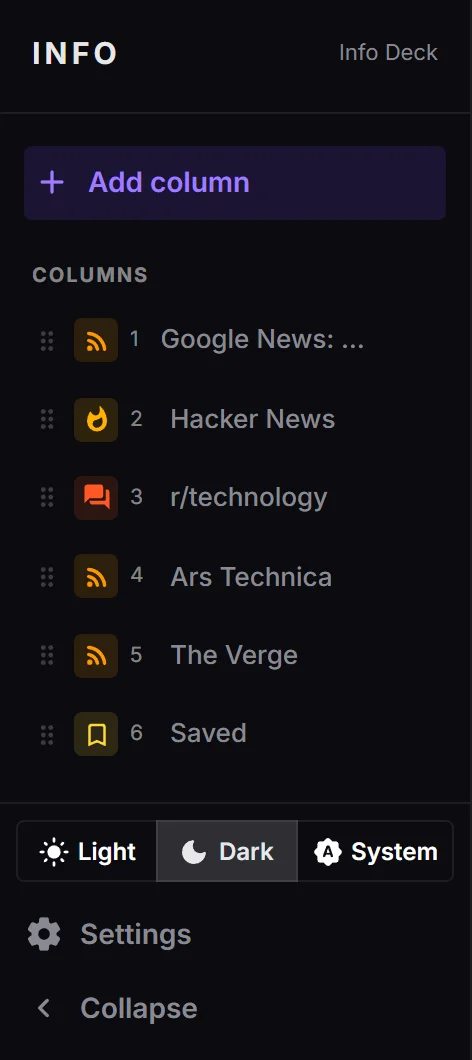
1. Light, dark or system
The Light / Dark / System switch at the bottom of the sidebar changes how the whole app looks. System follows your computer's own light or dark setting.
When the sidebar is collapsed, there is a single button instead. Click it to step through the three choices.
2. Text size
- Click Settings in the sidebar.
- Open Appearance.
- Choose Small, Default, Large or Larger under Font size.
The whole page scales together, including text, icons and spacing.
3. The sidebar
- Click a column's row to scroll the board to it.
- Drag a row up or down to reorder your columns.
- Hover over a row and click the X to remove that column.
- Click Collapse to shrink the sidebar to a strip of icons, and the arrow at the bottom to expand it again. Your choice is remembered.
4. Your account
Open Settings and then Account to see which email you're signed in with and to Sign out.
Next steps
- Troubleshooting: when something looks wrong.
- Set up each kind of column: add more sources to your deck.