Getting started
Info Deck is a board of columns. Each column follows one source, such as a news topic, a subreddit or a YouTube channel, and keeps itself up to date. This guide takes you from a new account to your first look at the board.
1. Create your account
- Open Info Deck and click Get started.
- Type your email and a password of at least 6 characters, then click Create account. You can also click Continue with Google.
- If you used email, check your inbox for a confirmation message and click the link in it.
- Go back to Info Deck and sign in.
Tip: The confirmation email can take a minute to arrive. If you don't see it, check your spam folder.
Your columns, saved stories and settings belong to your account, so they are there whenever you sign in, on any device.
2. Meet your deck
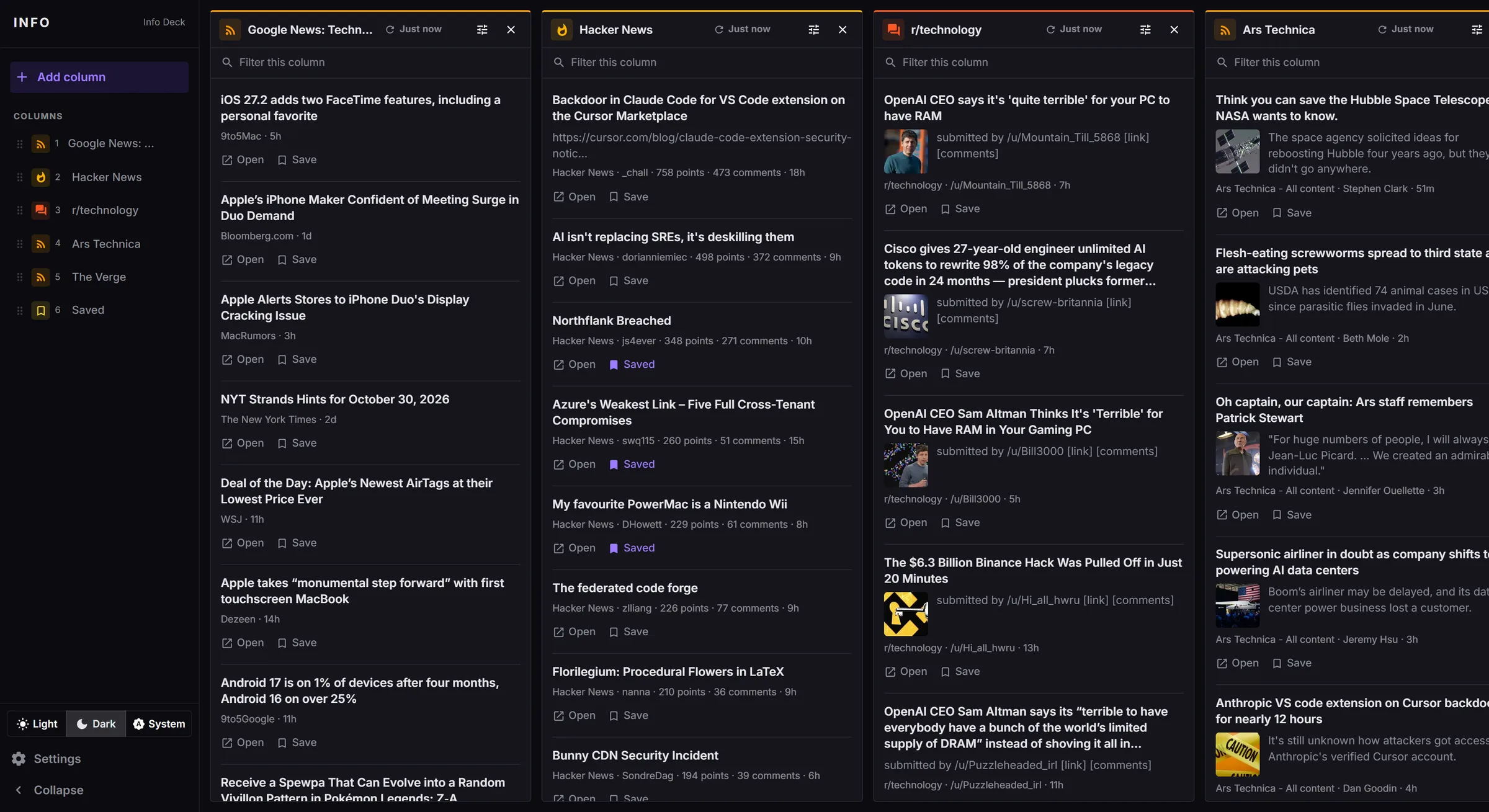
The first time you sign in, your board is empty. Everything you need is in the sidebar on the left:
- Add column opens the menu of column types.
- Columns lists every column on your board.
- Light / Dark / System switches the look of the app.
- Settings opens your appearance settings and account.
- Collapse shrinks the sidebar to a slim strip of icons.
The board itself is on the right. Columns sit side by side, and you scroll sideways to see more of them.
3. Add your first column
Click Add column, pick a type, and choose a ready-made preset such as Google News: Technology or Hacker News's Front page. The column fills with stories within a few seconds.
Add columns walks through this step by step.
Next steps
- Add columns: choose sources and set how often they update.
- Set up each kind of column: what each source needs from you.
- Read, save and hide stories: work through your columns.